

Completing your Cal State Apply application accurately is essential for admission consideration. To help you avoid common mistakes and understand what we look for when reviewing applications, we’ve put together the tips and guidance below.
For general instructions on how to use Cal State Apply, visit the Cal State Apply Applicant Help Center. You’ll find guides for first-time freshmen, transfers, graduate/post-baccalaureate applicants, and international applicants. Guides are updated every October.
Fall 2026 Transfer Applicants: The January Transfer Application Update period runs from early January through January 31, 2026. We strongly recommend updating your Fall 2025 grades and any Winter 2026 or Spring 2026 courses in progress or planned during this window.
General Application Tips
Email Communications
Cal State LA uses email as the official means of communication with applicants.
To ensure you receive important updates about your application:
- Use a personal email address instead of a school-issued email. Some schools block outside messages or deactivate accounts after you graduate.
- If you don’t already have one, consider creating a free email account (e.g., Gmail, Yahoo, Outlook, iCloud).
- Add @calstatela.edu to your safe senders list so messages don’t go to spam or junk mail.
International Applicants: The following email providers have been known to block Cal State LA messages. We strongly recommend using a different email service:
- qq.com
- 126.com
- 163.com
- yeah.net
Transfer Applicants
Engineering & Computer Science Majors: GE Critical Thinking (A3) Exception
If you’re applying to one of the following majors at Cal State LA, you are NOT required to complete the GE Critical Thinking (A3) course for admission:
- Civil Engineering
- Computer Science
- Electrical Engineering
- Mechanical Engineering
How to report this in Cal State Apply:
- In the General Education section, if you did not complete an A3 course, select the "Opt Out" checkbox.
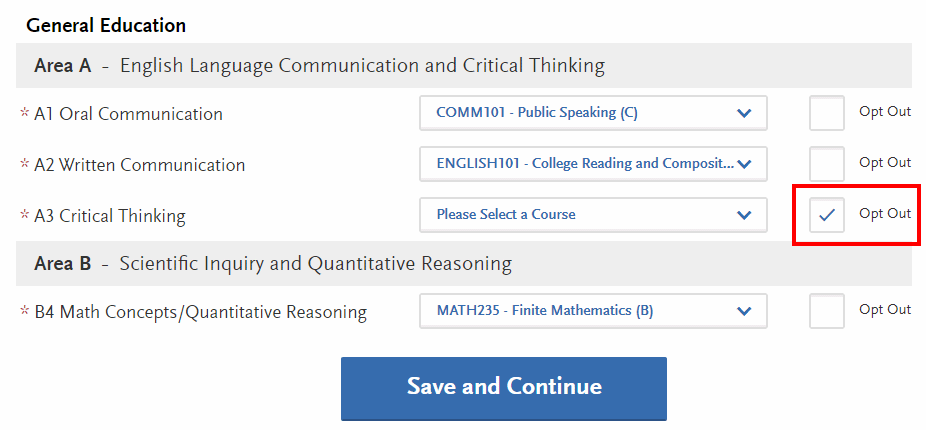
Important: This exception applies only to the Cal State LA versions of the majors listed above. Other CSU campuses may still require GE Critical Thinking for admission—even for similar majors.
Major-Specific Criteria Matching
Several majors at Cal State LA have additional major-specific admission criteria. Review the requirements for your intended program on the Major-Specific Criteria page.
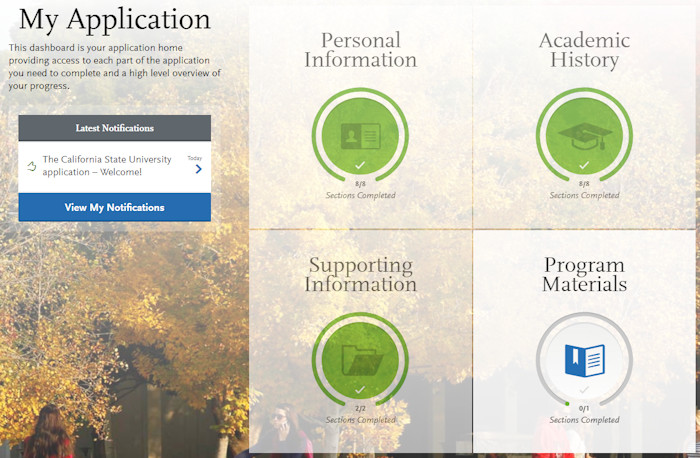
You will report your progress toward these requirements in the Program Materials section of your Cal State Apply application.
Before Starting the Program Materials Section
Make sure the following sections of your Cal State Apply application are fully completed:
- Colleges Attended: Add every college or university you have attended.
- College Coursework: Enter all courses completed, in progress, or planned. Include:
- AP, IB, CLEP, or other exam-based credit
- Repeated courses
- Courses from every institution attended
- Double-check all information before moving on. Once submitted, your application cannot be edited. Incorrect or false information may negatively affect your admission eligibility.
Accessing Program Materials
Once your Personal Information, Academic History, and Supporting Information sections are complete, navigate to Program Materials.
Click your Cal State LA program to access the following tabs:
- Home tab: Read all instructions before continuing.
- Prerequisites tab:
- Your College Coursework section must be complete before you begin.
- Read the instructions carefully before assigning courses.
- If space is available, applicants who have not yet completed all major-specific requirements may still be considered based on progress.
- Questions tab: Answer all supplemental questions accurately.
Completing the Prerequisites Tab
- To assign a course to a prerequisite, click the Assign Course button.

- On the prerequisite matching screen, choose which of your courses satisfy each prerequisite by clicking the + button next to each applicable course.
- If you have not completed a required course, click I Am Not Matching Any Courses to this Prerequisite.
- If you completed courses at a California community college, use the ASSIST website to match your courses to Cal State LA prerequisites.
- If no equivalent course appears in ASSIST, see the Determining Course Equivalencies section of this page for guidance.
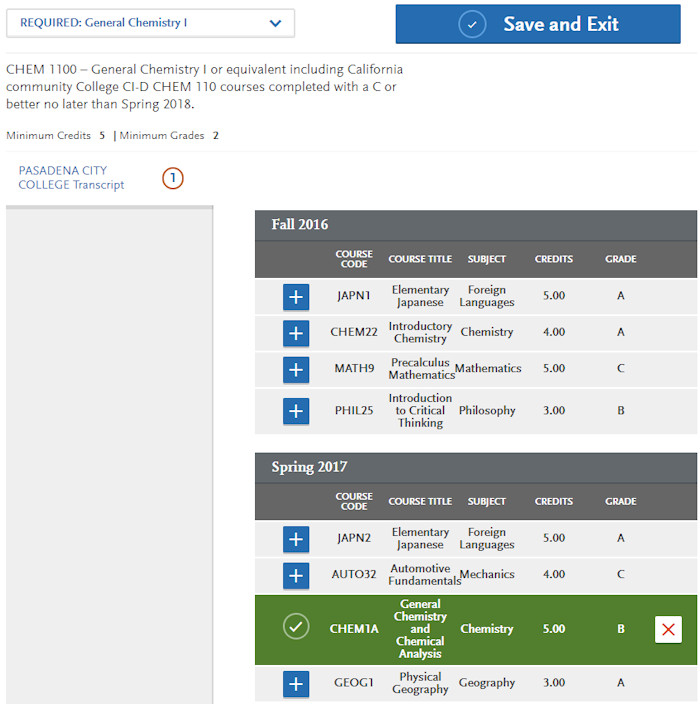
- After assigning courses, click Save and Exit to return to the main Prerequisites tab.
- Repeat for each prerequisite listed.
- When all prerequisites have been assigned or skipped, a green checkmark will appear on the Prerequisites tab.

Completing the Questions Tab
- Answer all supplemental questions and click Save My Responses.
- Once saved, you will see green checkmarks indicating the Program Materials section is complete.

Determining Course Equivalencies for Major-Specific Criteria
Be aware: A California Community College Associate Degree for Transfer (AA-T/AS-T) in a major deemed similar to your Cal State LA program may be used in place of individual preparation courses.
If you need to see whether a course you’ve taken is equivalent to a Cal State LA prerequisite, you can:
- Use ASSIST to check official course articulation, or
- Use C-ID Course Search to match courses by C-ID number, or
- Compare course descriptions when no ASSIST or C-ID match is available.
1. Using ASSIST (California Community Colleges, UC, or CSU courses)
- Go to ASSIST.
- Under Search below for articulation agreements, select your current or most recent institution.

- Select To: California State University, Los Angeles.

- Click View Agreements.
- Choose how you want to view the agreement:
By Cal State LA major – to see a list of recommended courses for a specific major.
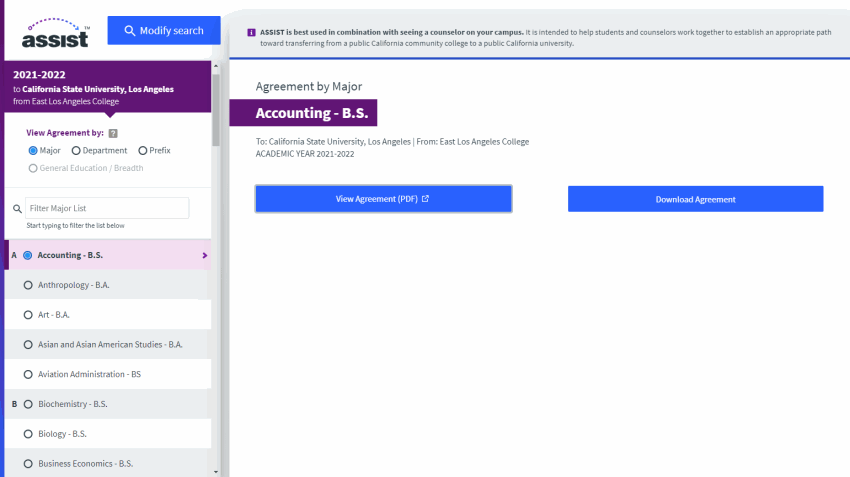
By Cal State LA course department – to match a specific Cal State LA course.
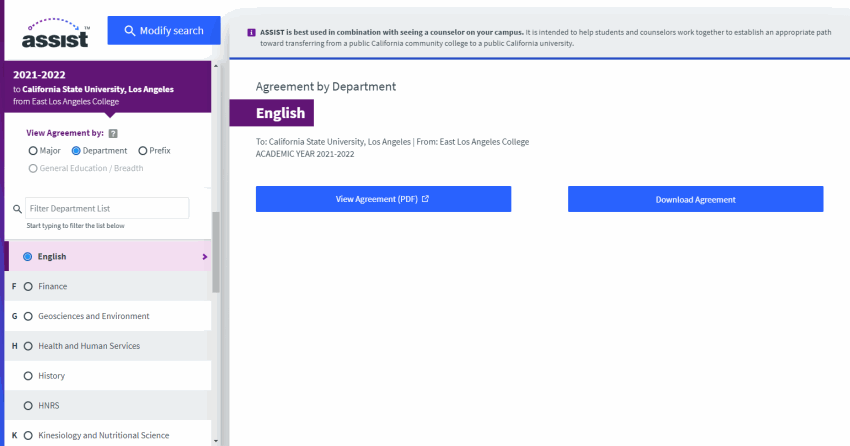
- Open the agreement by clicking View Agreement or download it using Download Agreement.
2. Using C-ID Designators
When available, a C-ID designator will appear in the Cal State Apply prerequisite description for a course.
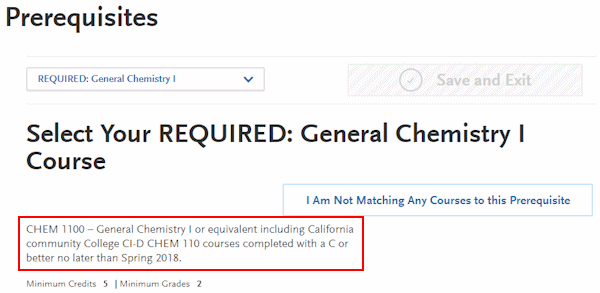
To find matching courses:
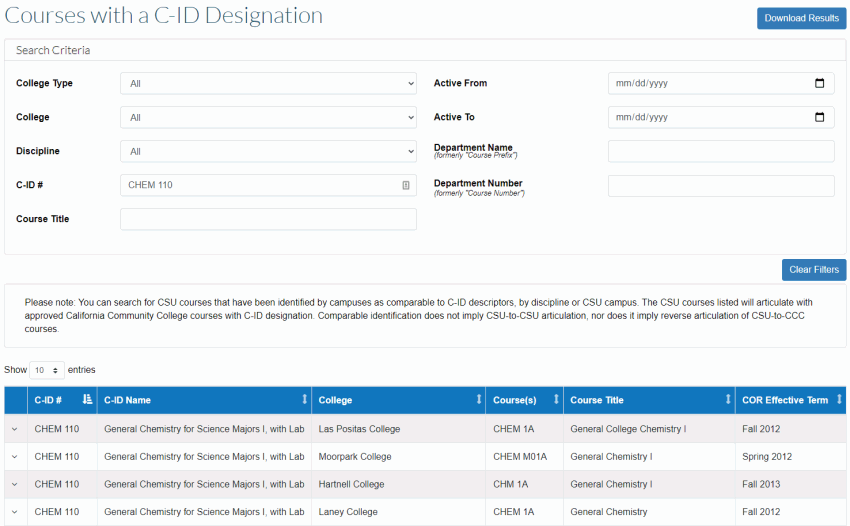
- Go to the Courses with a C-ID Designation page.
- Enter the C-ID number in the C-ID # search box.
- Review the list of courses that match that designator at various colleges.
3. Comparing Course Descriptions (when ASSIST or C-ID is not available)
If your institution does not appear in ASSIST and there is no C-ID match, you’ll need to compare course descriptions to decide whether your course reasonably matches the Cal State LA prerequisite.
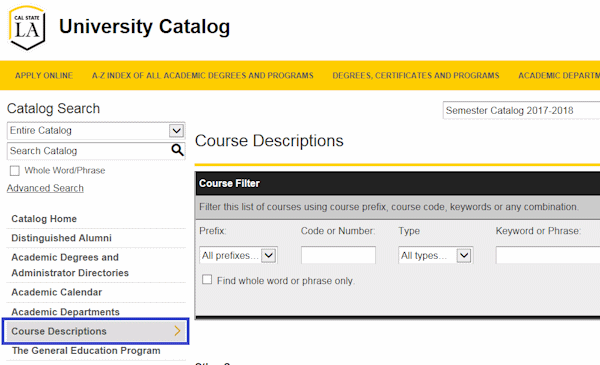
Find the Cal State LA course description in the University Catalog.
- Locate the course description from your college’s catalog or schedule.
Compare the two descriptions using these questions:
- Do they cover the same key topics and concepts?
- Are the prerequisites similar or higher at your institution?
- Does each course include a lab or other required activity if the Cal State LA course does?
- Are the unit values the same or higher at your institution?
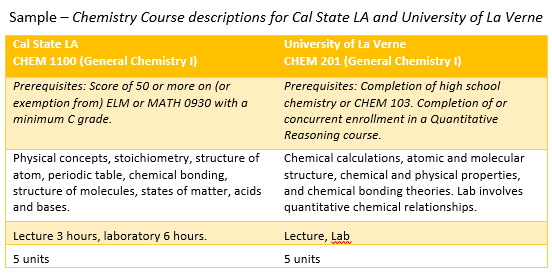
Example: The courses have similar topics, both require labs, and carry the same unit value – they are reasonably similar and may be considered equivalent for major-specific prerequisite reporting.
- Additional tips:
- Units should normally be at least equal to the Cal State LA course. If your school is on quarters, multiply quarter units by 0.66 to estimate semester units.
- Check the level: a course that requires Calculus, for example, is likely more advanced than one that only requires College Algebra.
- Look for repeated vocabulary and themes in both descriptions – that’s a good sign the courses align.
Final note: A course may be accepted for admission purposes if it reasonably meets Cal State LA’s objectives, but additional coursework may still be required for graduation if the course is later found not to be fully equivalent.
Returning Applicants
Report Your Returning Student Status
If you were previously admitted to Cal State LA and earned units here, follow the steps below to correctly set up your Cal State Apply profile.
Step 1: Degree Goal
- What degree, credential, or certificate are you applying for?
- Select: First Bachelor’s Degree (Seeking your first bachelor’s degree and have not earned a prior bachelor’s degree)
- Which option best describes your current educational status?
- Select: Transferring from a community college or four-year institution
- How many college credits will you have earned when you enroll?
- Select the option that reflects your total semester units earned at Cal State LA and from any other institutions attended.
Step 1a: Returning Status
- Are you applying to return to the CSU campus you previously attended and complete the same major?
- Select: Yes
- Which CSU campus did you previously attend?
- Select: Cal State LA
- What was your Student ID?
- Enter your Cal State LA CIN (Campus Identification Number), if known.
- Select the option that describes your situation:
- I previously attended a CSU campus and am now applying to an additional campus.
Choose this if you left Cal State LA, have not attended any other colleges since then, and want to apply to additional CSU campuses. - I attended other colleges or universities since leaving CSU.
Choose this if you attended Cal State LA and then took courses elsewhere, including through Cal State LA’s College of Professional and Global Education (PaGE). - I previously attended a CSU campus and am now applying to an additional campus AND I attended other colleges or universities since attending CSU.
Choose this if both conditions apply to you — you want to apply to other CSUs and you have also taken courses at other institutions, including PaGE. - I have not attended other colleges or universities since leaving CSU and am only applying to my original campus.
Choose this if Cal State LA is the only campus you are applying to and you have not attended another institution (including PaGE) since leaving.
- I previously attended a CSU campus and am now applying to an additional campus.
Cal State LA Coursework: To Report or Not Report?
Whether you report Cal State LA coursework in Cal State Apply depends on the Returning Student scenario you selected in the Extended Profile.
Returning Student — Only Re-Applying to Cal State LA (Do NOT Report Coursework)
If you selected “I have not attended other colleges or universities since leaving CSU and am only applying to my original campus”, then:
- Do NOT enter any college coursework into the College Coursework section.
- In the Program Materials section, opt out of reporting Major-Specific Criteria courses.
- See the Major-Specific Criteria Matching section above for how to select the “I Am Not Matching Any Courses to this Prerequisite” button.
Returning Student — Applying to Multiple CSU Campuses (Must Report Coursework)
If you selected “I previously attended a CSU campus and am now applying to an additional campus”, then:
- You are considered a Returning Student at Cal State LA, but because you are applying to other CSU campuses, you must report all coursework.
- Enter coursework from all institutions you attended, including Cal State LA.
- This ensures other campuses have enough information to evaluate your eligibility.
- See the Transfer Applicants section above for detailed reporting instructions.
Returning Transfers (Must Report Coursework)
If you selected either:
- “I attended other colleges or universities since leaving CSU,” or
- “I previously attended a CSU campus and am now applying to an additional campus AND I attended other colleges or universities since attending CSU,”
…then you are held to transfer admission requirements and must:
- Report all completed, in-progress, and planned coursework.
- Include courses from every college attended — including Cal State LA.
- Follow the guidance in the Transfer Applicants tips section above.
January Transfer Application Update Tips
Fall 2026 Transfer Application Update period: Opens in early January and closes on January 31, 2026.
Cal State Apply will reopen for updates in early January. Applicants who are required to complete the January Transfer Update will receive an email notification with instructions.
Who Should Update Their Application?
Transfer applicants who have not yet received an admission decision must update their Cal State Apply application once notified to do so.
If you have taken courses at a U.S. college or university, you are required to complete the January Transfer Application Update. Providing your most recent coursework helps us review your application more quickly.
Deadline: The January Transfer Update must be completed no later than January 31, 2026.
Accurately reporting your Academic History is essential. During the update period, review and update the following Cal State Apply sections:
- Academic History – You must report all schools attended and enter all U.S. college coursework.
- Add new colleges, new terms, or new courses if applicable.
- Enter grades earned for Fall 2025 courses.
- Update courses to reflect your Spring 2026 enrollment plans.
- Confirm your calculated GPA and transferable units by reviewing:
- Your entered course grades
- Your transferable course indicators (the “transferable” flags)
- Double-check that you continue to meet General Education (GE) requirements.
This is especially important if:- You did not pass a Fall 2025 GE course with a C- or better, or
- Your Spring 2026 GE courses have changed.
- Program Materials – Prerequisites Tab
- Confirm you have attempted to assign a course to each major-specific prerequisite.
- If any of your courses have changed, reassign your prerequisite courses as needed.
Review Your Currently Submitted Application
Before completing your January Transfer Update, download and review the PDF of your Cal State Apply application to confirm that everything you previously submitted is accurate.
How to download your application PDF:
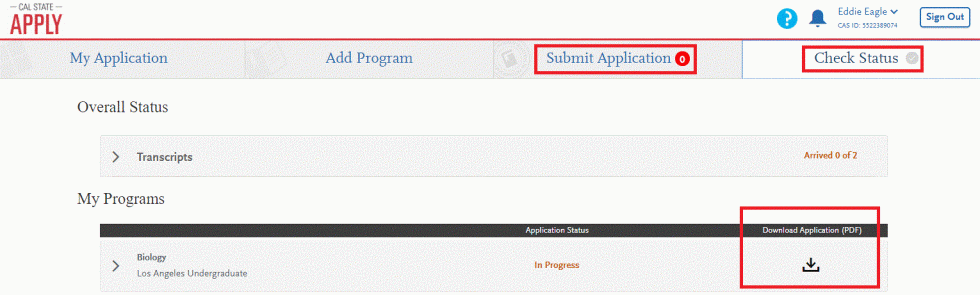
- Log back into your Cal State Apply account.
- From the application dashboard, you can download your PDF from either location:
- Check Status tab – click the Download button next to your program, or
- Submit Application tab – click the Download button next to your program.
What to Check in Your Application PDF
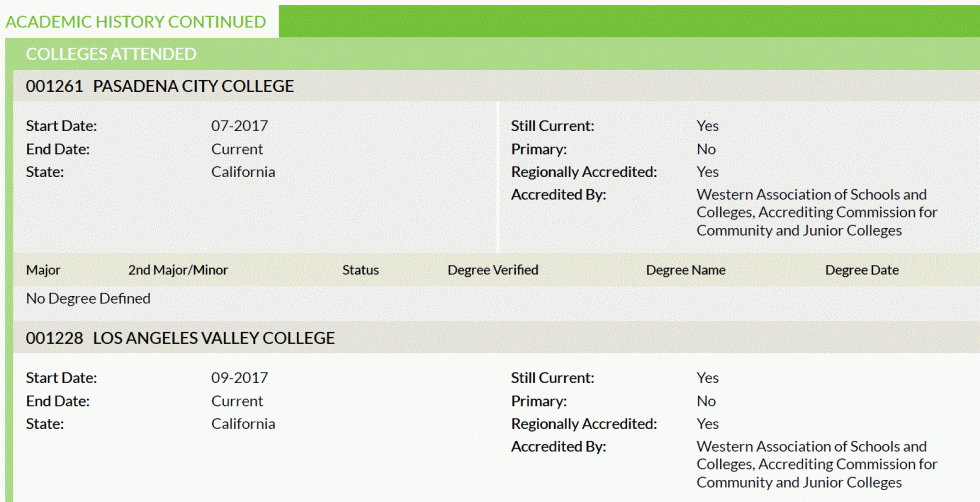
- Academic History – Did you report every college or university you have attended?
- Calculated GPA & Transferable Units – Confirm the accuracy of your:
- Graded Hours = Transferable Units
- GPA Score = Transferable GPA
- If something looks incorrect, review your entered coursework and make sure courses are correctly marked as transferable.

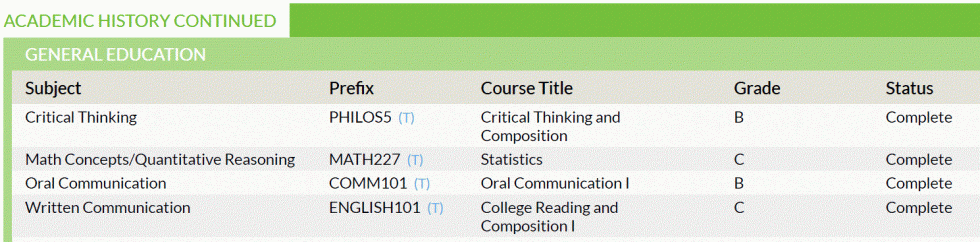
- General Education – Did you match your GE courses accurately?
- If something is incorrect, review your reported classes and update as needed.
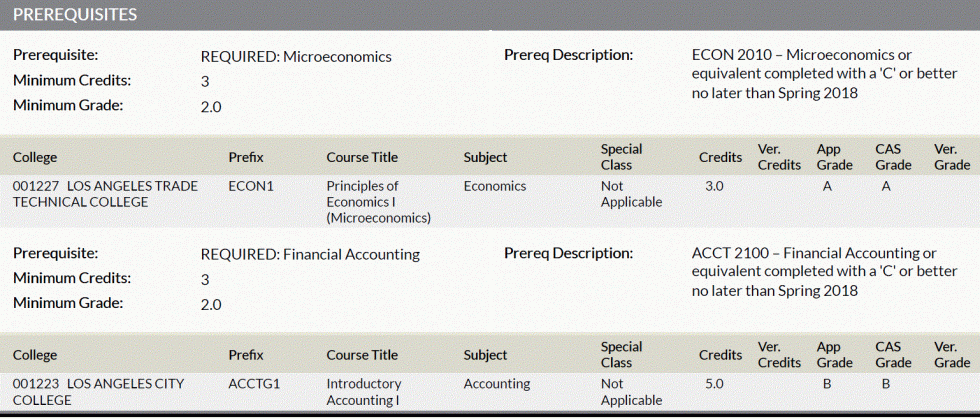
- Prerequisites (Program Materials – Prerequisites Tab) – Did you accurately match courses to your major’s prerequisites?
- If not, update your assignments before submitting the January Transfer Update.
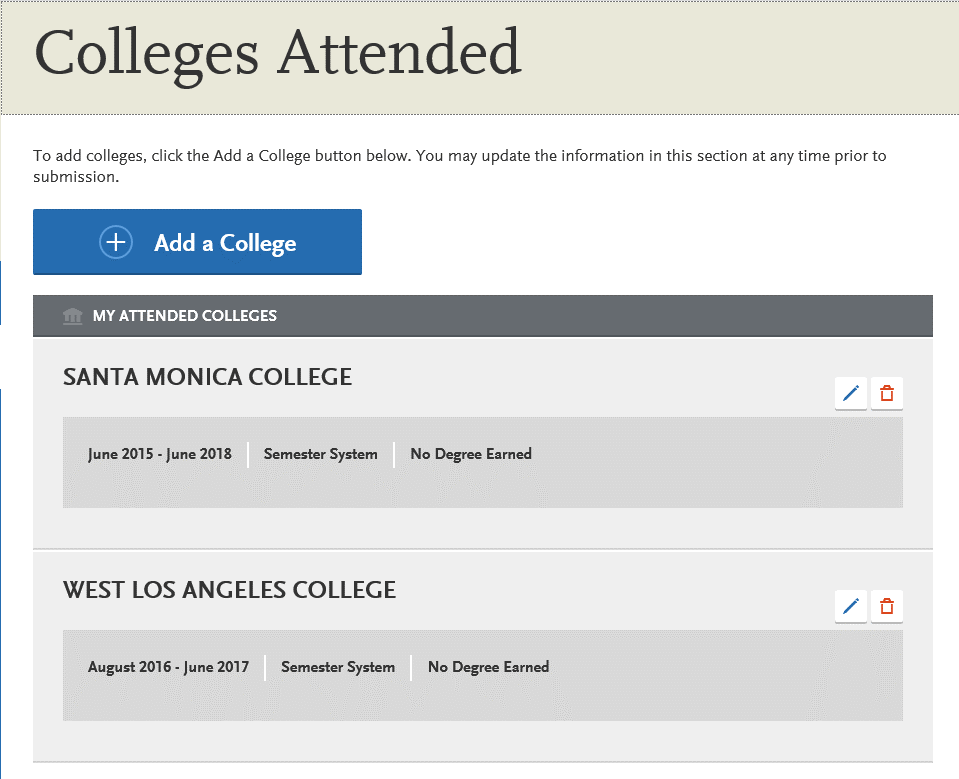
Colleges Attended: Where Have You Attended College?
Be aware: You may add new colleges in Cal State Apply during the January Update, but you cannot delete or edit previously added colleges or attendance dates.
To update attendance dates (for example, to include Spring or Summer courses), contact Cal State Apply Applicant Support, who can adjust the dates for you.
It is important that your complete college history is reported. Please enter all colleges or universities you have attended, and any you plan to attend before enrolling at Cal State LA.
College Coursework: Check Your Courses, Enter Grades, and Update Planned Courses
Be aware: For Fall 2026 admission, you must report grades for all college courses taken through the Fall 2025 term (December 2025).
Enter Grades for Completed Courses
If you now have grades for terms that were previously marked as “In Progress/Planned” (such as Fall 2025), update them using the steps below.
- Go to the College Coursework section and click the Edit button next to the college/university whose courses you need to update.
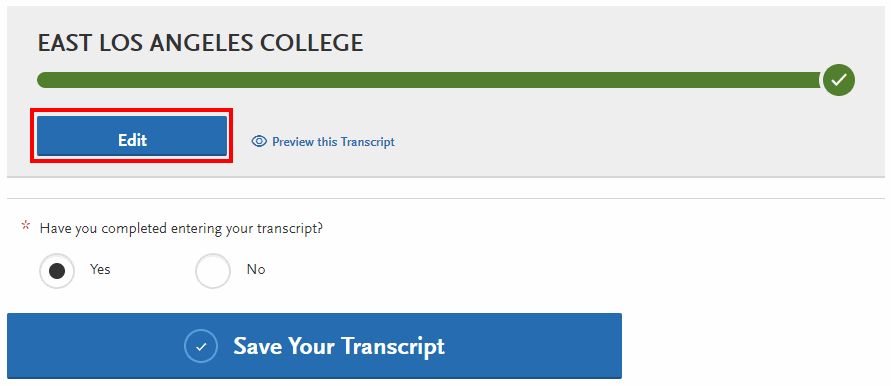
- Locate the term you want to update (e.g., Fall 2025) and click the term’s Edit button.
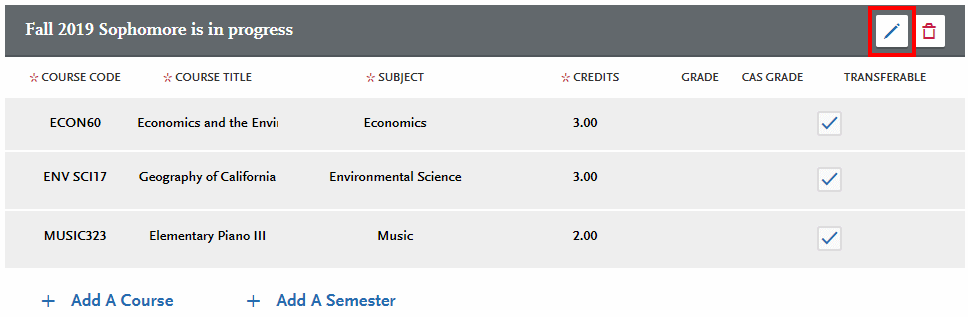
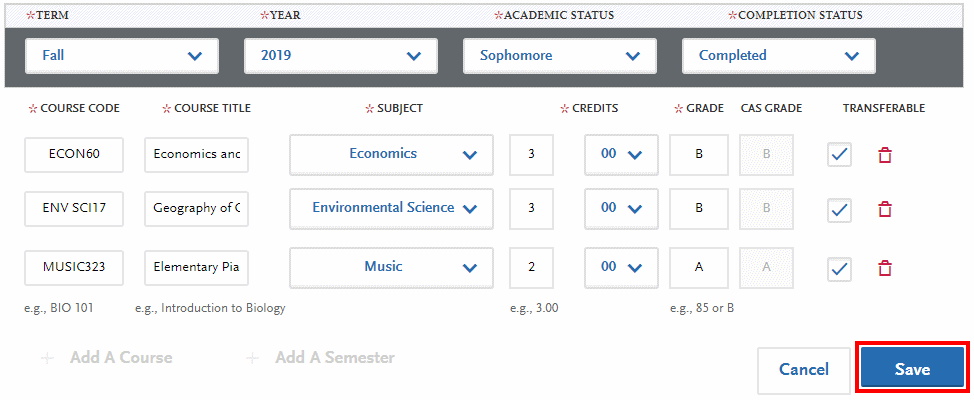
- Add or remove courses as needed. When the course list is correct, change the term’s Completion Status from In Progress/Planned to Completed.

- Enter the grade earned for each course. Double-check for accuracy, then click Save.
Important: If you know a course is CSU transferable, make sure the Transferable box is checked.
Update Your Planned Spring 2026 Courses
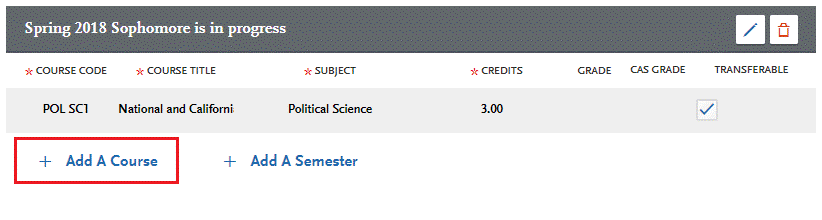
After updating grades, review your planned Spring 2026 coursework. Add or delete courses as appropriate.
Final Check Before Submitting
Before submitting your January Transfer Update, verify the following:
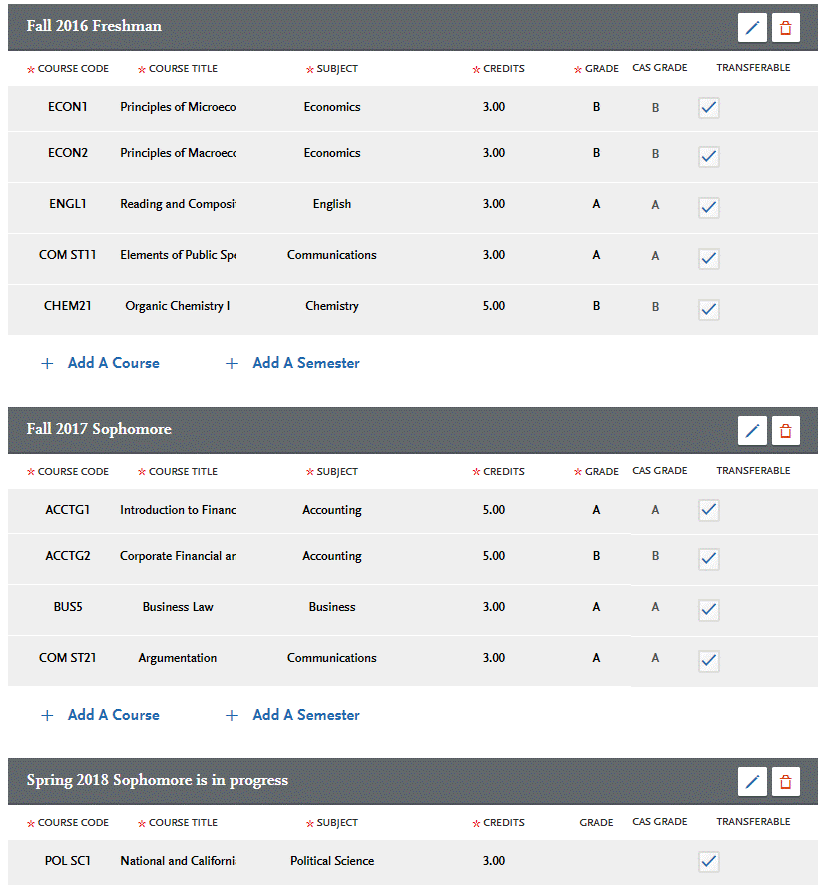
- All courses and grades are entered correctly.
- All transferable courses are marked as transferable.
- Courses reflect accurate:
- Units
- Grades
- GE designations (if applicable)
- Prerequisite matching (Program Materials tab)
This information is used to calculate your GPA and completed transferable units for admission eligibility.
Reporting Repeated Courses & Academic Renewal
The CSU honors the grading policies of each institution. Cal State LA accepts official transcript entries, including those showing repeats, academic renewal, and incomplete grades.
How to Report Repeated Courses
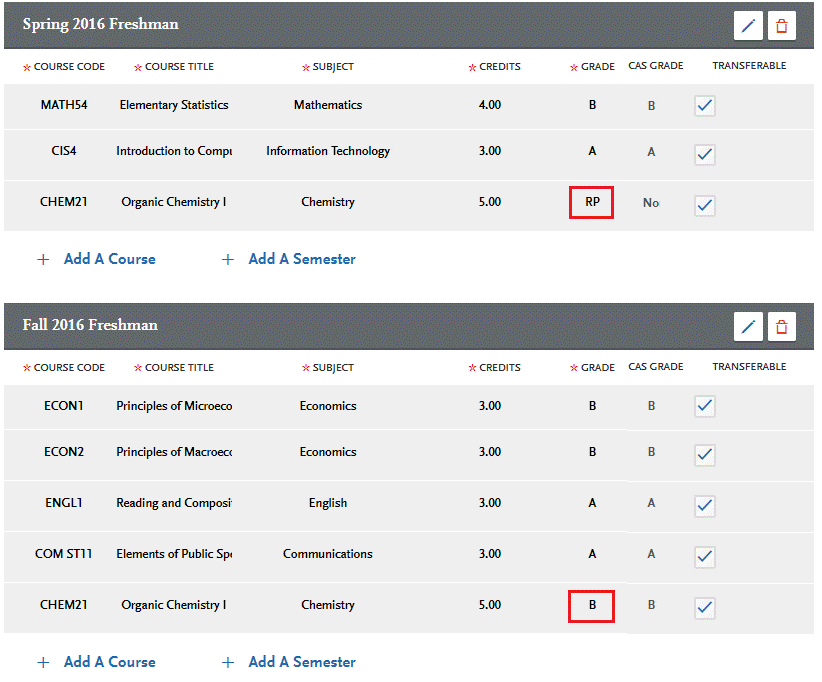
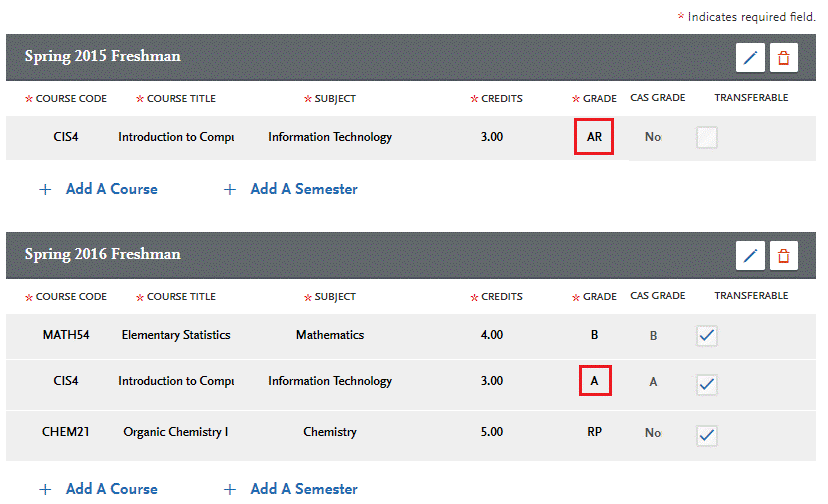
If your transcript shows that a course was repeated and excluded from your institution’s GPA:
- Enter the grade as RP (Repeat).
- This applies even when the repeated course appears on a district transcript covering multiple colleges.
Do NOT mark repeats for in-progress courses.
If the repeat is still in progress, report the original grade.
How to Report Academic Renewal
If your college grants Academic Renewal (AR) and marks it on your transcript:
- Enter the grade as AR in Cal State Apply.
Reporting AP / IB / CLEP Test Credit
- If you forgot to report AP, IB, or CLEP test credit in your original application, you may add it during the January Update period.
- Enter any missing test credit under your current Spring 2026 term in the College Coursework section.
Calculate Your Transfer GPA & Units
- To view your Calculated Transfer GPA and Transfer Credit Hours, go to the College Coursework area of the Academic History section in Cal State Apply and click the "Calculate my Transfer GPA" button.
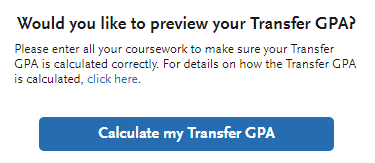
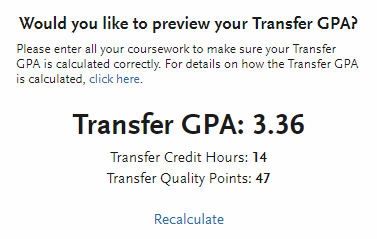
- After clicking the button, Cal State Apply will display:
- Transfer GPA
- Transfer Credit Hours (total completed transferable semester units)
- If the numbers look incorrect (too high or too low), double-check all transcript entries, including:
- Grades
- Unit values
- Repeated course handling
- Transferable course flags
General Education (GE) Requirements — Verify Your Entries
This is a very important step. Pay close attention if:
- You did not pass a Fall 2025 GE course with a C– or better, or
- Your planned Spring 2026 GE courses have changed.
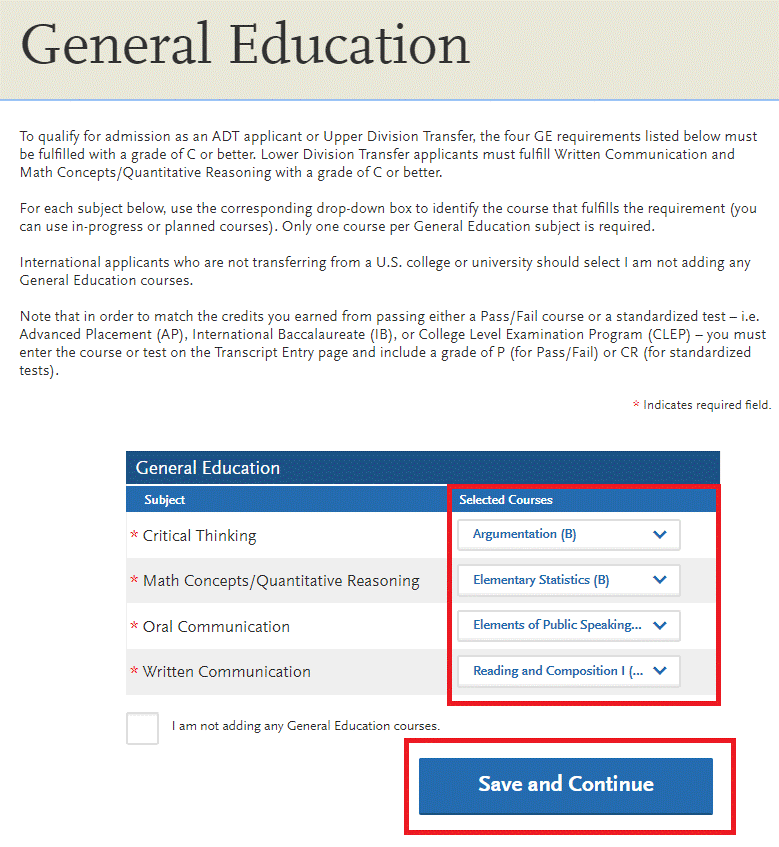
- Review your reported GE courses and confirm that you entered an equivalent course or qualifying AP/CLEP exam for each GE subject area.
- For applicants who attended only U.S. colleges:
- Do not select “I am not adding any General Education Courses.”
- Do not leave any GE subject area blank.
- For applicants with international coursework:
If your international coursework cannot be entered into Cal State Apply, you may select “I am not adding any General Education Courses.” However, if you have any U.S. credit that satisfies GE, assign it to the appropriate GE subject area.
Updating Your Major-Specific Prerequisite Courses
If you applied to a major with Major-Specific Criteria and need to correct or update your prerequisite course selections, follow the steps below.
How to Update Your Prerequisite Matches
- Go to the Program Materials section of your application.
- Select the Prerequisites tab.
- Choose the prerequisite you need to update and reassign the correct course(s).
Need help determining whether a course meets a prerequisite? See the TRANSFER APPLICANTS section above and review Determining Course Equivalencies for Major-Specific Criteria.
Submit Your January Transfer Update
After you have finished reviewing and updating all sections of your application, you must resubmit the updates to Cal State LA and any other CSU campuses you applied to.
On your Cal State Apply Application Dashboard, click the "Update my application" button to submit your January Transfer Update.
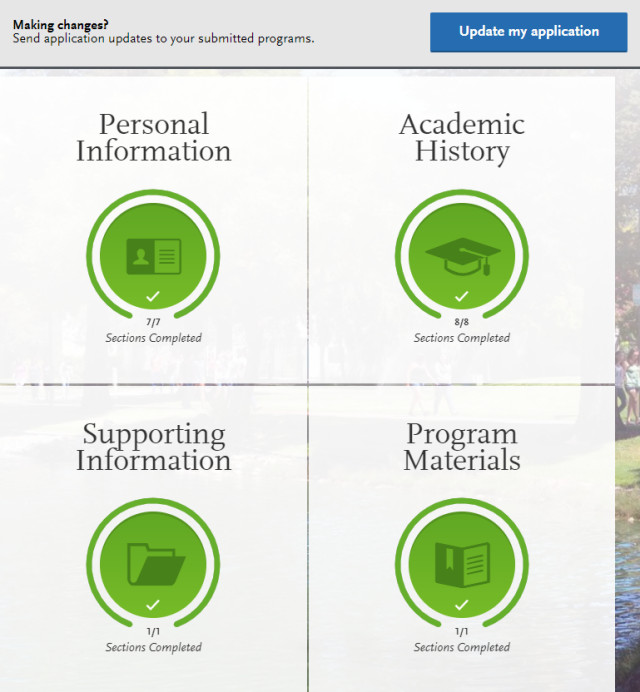
Important: Your updates are not sent to CSU campuses until you click the "Update my application" button. Be sure to complete this step before the January 31 deadline.